Restore Missing “Compressed zip Folder” Option in Windows 10
Restore Missing “Compressed zip Folder” Option in Windows 10
All that is required to convert a regular File/Folder into its compressed or zipped form is to right-click on the File/Folder > click on Send to > Compressed (zipped) Folder option.
 If the Compressed (Zipped) Folder option is missing from the Send To menu on your computer, you should be able to restore the Compressed Compressed Folder option in Windows 10 using one of these methods.
- Delete Bluetooth Folder in SendTo Folder
- Copy Compressed Zip Folder Shortcut From Default User Profile.
1. Delete Bluetooth Folder in SendTo Folder
- Right-click on Start button and click on File Explorer option.

- In the File Explorer screen, click on the View tab and select “Hidden Items” option to show hidden files and folders on your computer.

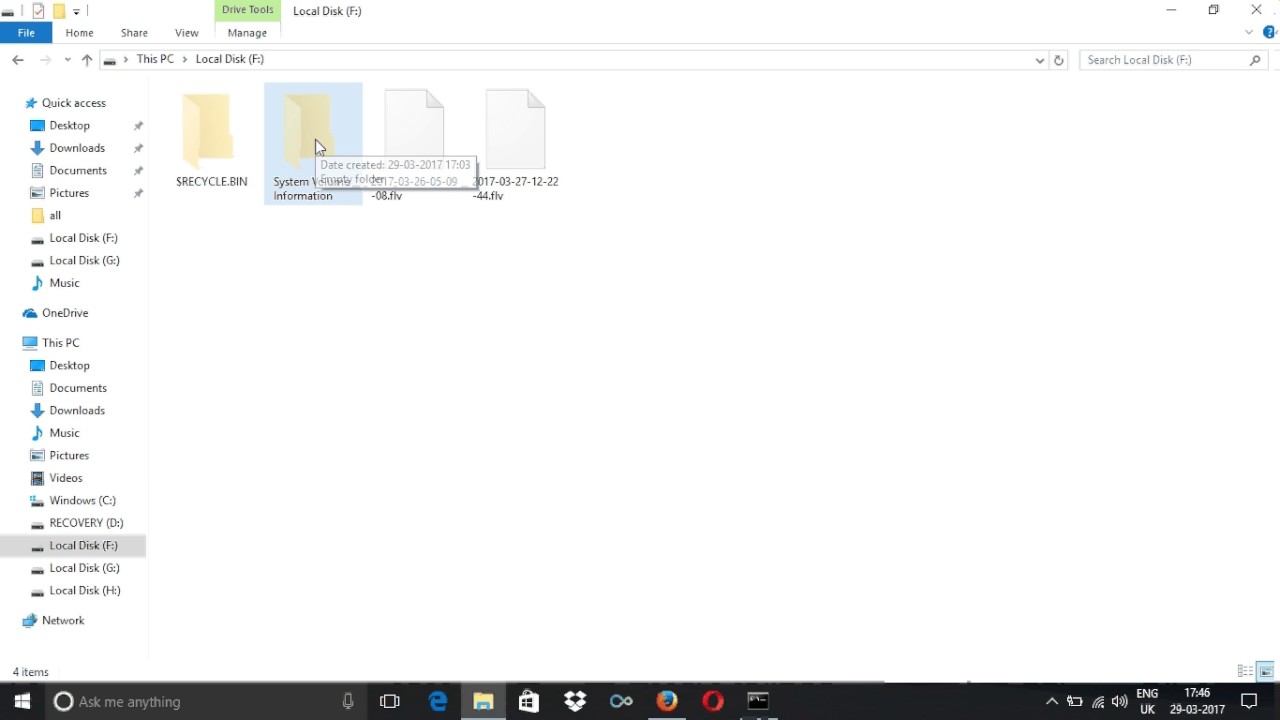
- Next, navigate to C:\Users\Username\AppData\Roaming\Microsoft\Windows\SendTo Folder and delete Bluetooth Device File (See image below).

- After deleting “Bluetooth device: File, restart your computer and see if the “Compressed ZIP Folder” option will now be available on your computer.
2. Copy Compressed ZIP Folder Shortcut From User Profile
Sometimes the shortcut to the compressed ZIP folder is removed from the user profile or damaged. In such a case, you can copy the shortcut "ZIP compressed folder" from the standard user profile in Windows 10 to your personal user profile.
- Right-click on the Start button and click on File Explorer option.
- In the File Explorer screen, click on the View tab and check “Hidden Items” option, in order to make your computer display hidden files and folders.
- Navigate to C:\Users\Default\AppData\Roaming\Microsoft\Windows\SendTo and copy Compressed (zipped) Folder item.

- Now, navigate to C:\Users\Username\AppData\Roaming\Microsoft\Windows\SendTo and paste the shortcut that you had copied by right-clicking in the SendTo Folder and clicking on Paste.

This fix works immediately, you should be able to right-click on any File/Folder and you will find the Compressed ZIP Folder option.
If you are following the steps in the video then you have to download the .zip folder from Here After Downloading the .zip folder, unzip it and you will get a folder named SendTo. Copy the folder and paste it inside C:\Users\Default\AppData\Roaming\Microsoft\Windows
What's Your Reaction?