How to Download and Install Libraries in Proteus 8 – Simple Step-by-Step Guide
Learn how to download and install libraries in Proteus 8 manually. Step-by-step guide to add LIB and MODELS files for simulating Arduino and other components.
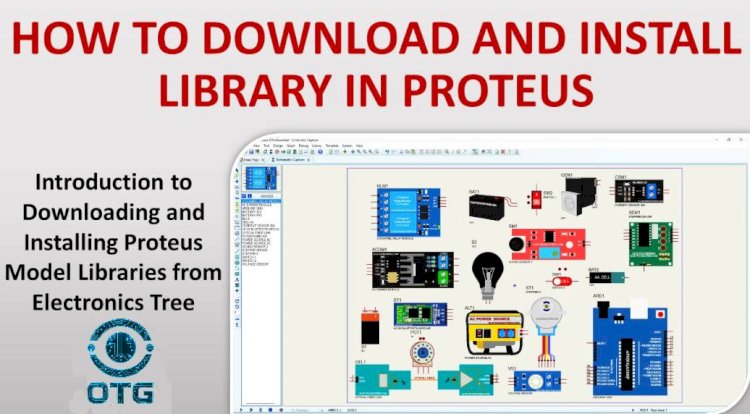
Getting Started with Proteus Libraries
Proteus is a powerful electronics simulation tool that lets you design and test circuits virtually. One of its most useful features is the ability to use custom libraries, which allow you to simulate a wide range of components — saving you time and improving the realism of your projects.

Proteus
Installing Libraries in Proteus – Manual Method
There are two main ways to add libraries to Proteus:
-
Using the Proteus Library Manager
-
Using the Manual installation method
In this guide, we’ll focus on the manual method — a simple and reliable way to install libraries from third-party sources.
Where to Get Proteus Libraries
You can find a huge selection of Proteus libraries online, from trusted sources like:
- overalltechnicalgyan.com
-
Labcenter's official forum
-
Other electronics communities and repositories
For this guide, we’ll use overalltechnicalgyan.com as the source.
How to Download the Library
-
Go to overalltechnicalgyan.com
-
Search for the component or library you need
-
Open the post, and you’ll find a description of the model, instructions, and a direct download link at the bottom
-
Click to download the
.zipfile
Installing the Library into Proteus 8
1. Extract the ZIP File
-
Unzip the downloaded file.
-
You’ll find folders like
LIBandMODELSinside.
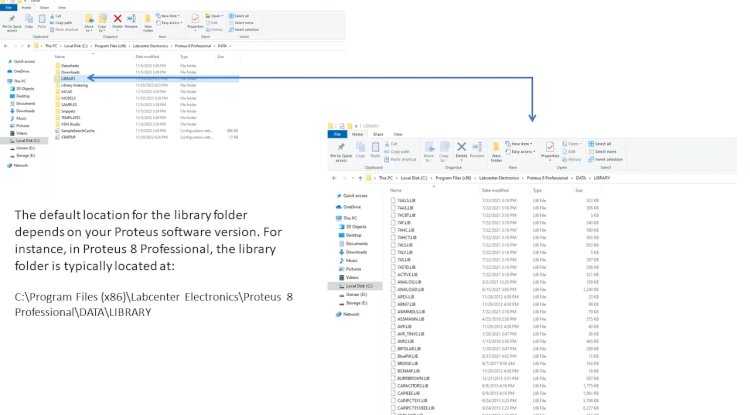
2. Find Your Proteus Library Folder
-
Locate where your Proteus 8 is installed.
-
Typically found at:
C:\Program Files (x86)\Labcenter Electronics\Proteus 8 Professional\DATA\LIBRARY
3. Copy LIB Files
-
Go into the
LIBfolder from your downloaded library. -
Copy all files inside.
-
Paste them into the
LIBRARYfolder in your Proteus installation.
4. Find Your Proteus Models Folder
-
Typically at:
C:\Program Files (x86)\Labcenter Electronics\Proteus 8 Professional\DATA\MODELS

5. Copy MODELS Files
-
Go into the
MODELSfolder from your downloaded ZIP. -
Copy all files.
-
Paste them into the
MODELSfolder in Proteus.
Alternative DATA Folder Location:
In some systems, the data folder might be located at:C:\ProgramData\Labcenter Electronics\Proteus 8 Professional\DATA

Note: The
ProgramDatafolder may be hidden — enable "Show hidden files" if you can't find it.
Final Steps
-
Restart Proteus to make the new components appear.
-
Open Pick Devices inside Proteus and search for the model you installed.
-
If it shows up, you're good to go!
What's Your Reaction?